

The studio issue · No. 45
Your website says DM to book. Now it takes the booking and the money
By Jide Odukoya, Founder7 min read3 problems
A family finds your winter minis on your website. The button says DM to book. By the time you reply, they have messaged two other studios.
Three problems most studios know. Each is below, with what bckendIQ did about it this week. Every other change sits at the bottom, closed.
Problem 1
Your website says DM to book, so the booking happens in a chat
A family sees your winter minis on your site. The button says DM to book. They message at lunch, you answer at nine, and Saturday went this morning. The booking lives in a chat, and the deposit comes by transfer, if it comes.
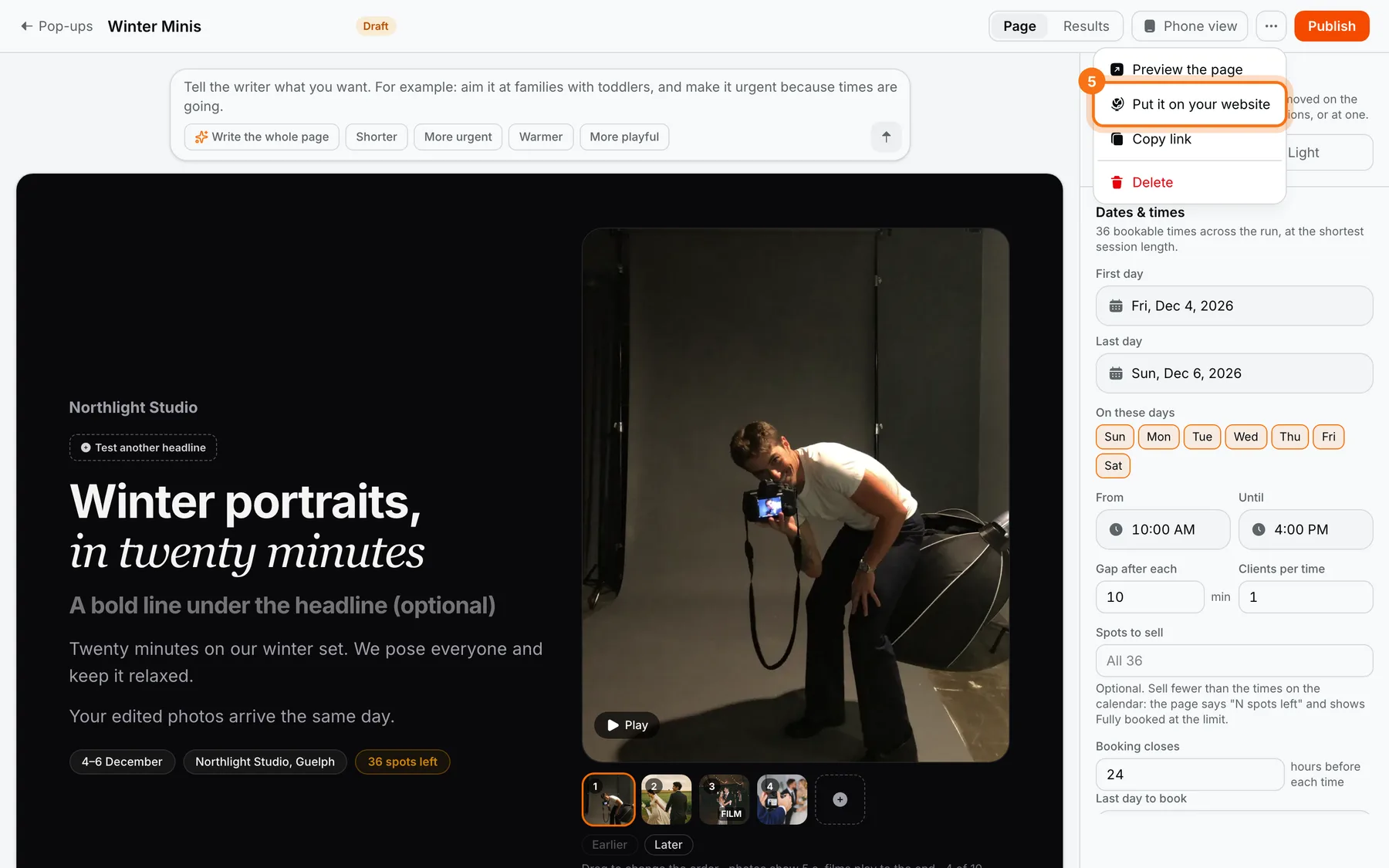
How bckendIQ solves it. Open the pop-up, press the three dots, then Put it on your website, and paste one line of code into your site. A button appears. Clients pick a session, a day and a time right there. Pay opens the checkout, the money goes to your own Stripe, and a Back link returns them to your site. A paid client lands on your calendar by name, with a project on the Timeline.
Problem 2
A client who already booked wants one more thing, and your software makes them a stranger
The couple booked the wedding in March. In May they want a pre-wedding shoot and a film. In most tools that is a new project and a new portal, or you type them in again. One freelancer on the HoneyBook community described where that ends.
“Which means she has a completely different portal for each one. Now it is time to do billing and it is a huge mess.”
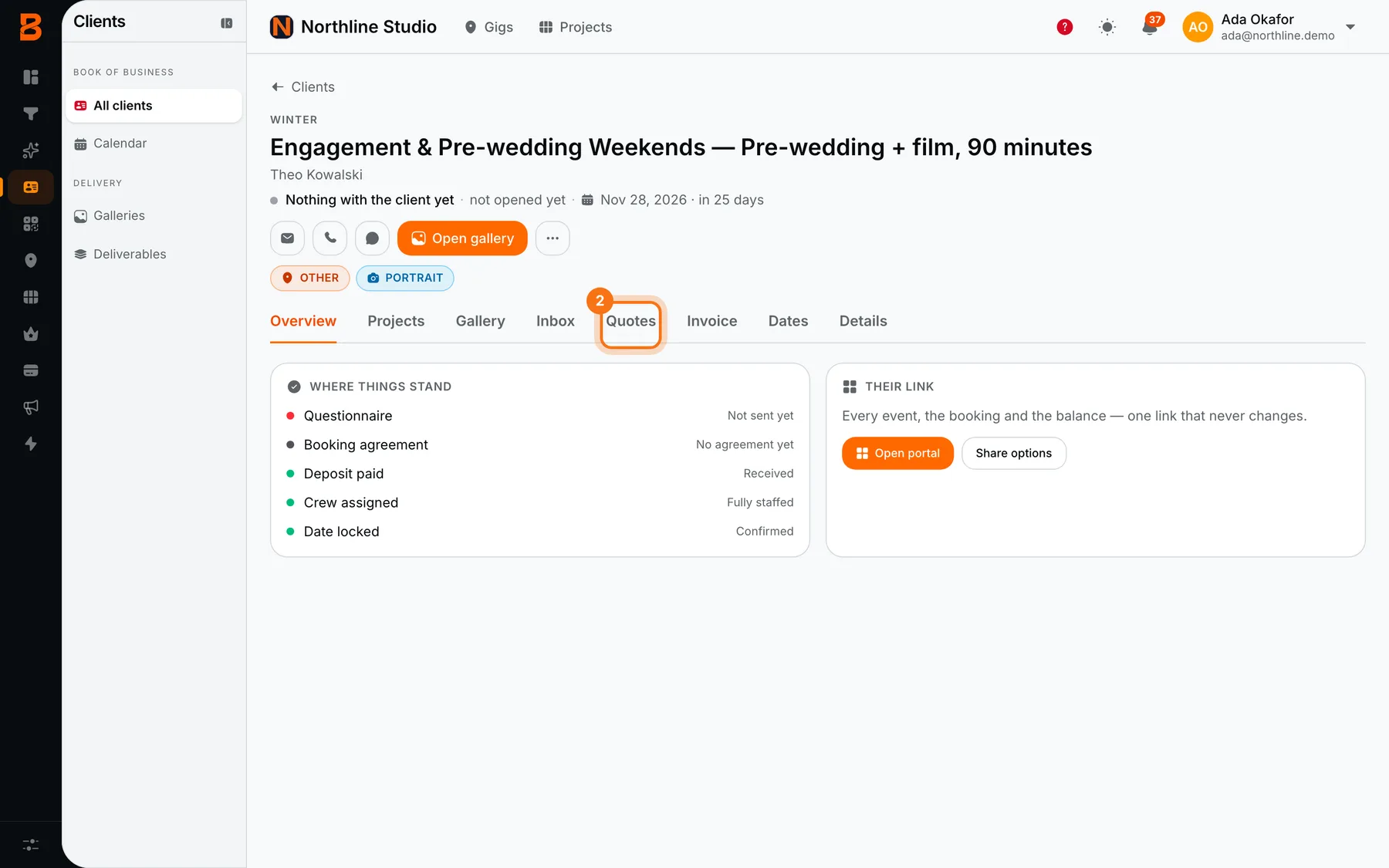
How bckendIQ solves it. Every client page now has a Quotes tab, next to Invoice. It lists every offer they have not accepted, as draft, sent, opened or signed. New quote opens the full invoice page with their name and email in. An unpaid quote holds no day on your calendar. When they pay, the new date joins their Dates tab, and the client keeps the one link they already have.
Problem 3
A couple abroad book a call for 5, and nobody knows whose 5
A couple in London book a call with your Lagos studio. Your page said 5. Their 5 is your 6. One of you waits by the phone. One wedding professional, quoted in Destination I Do, put it plainly.
“Writing ‘talk to you at 5 tomorrow’ can lead to confusion on both ends. Whose 5 o’clock is it? Is it the morning or the evening?”
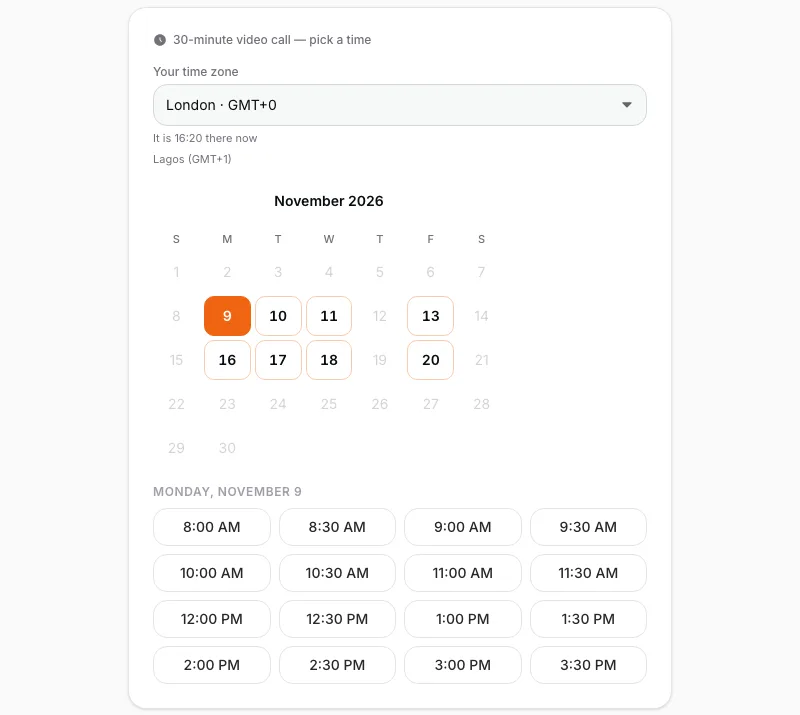
How bckendIQ solves it. Every time on a booking page or a call page now shows on the client’s own clock, with your studio’s clock beside it, and every time names its zone. The client can pick another zone from a list. The zone is saved on the booking, so the reminders and the move email keep it. On your calendar, every consultation carries Join, Call and WhatsApp.
Every change this week (24)
Clients book and pay a pop-up from your own website
Put it on your website gives you one line of code. A button opens the sessions, calendar, times and Pay. The money lands in your own Stripe.
Open it in bckendIQ →Quote a booked client something new, from their page
A Quotes tab lists every offer they have not accepted. New quote opens the full invoice page with their details in.
Open it in bckendIQ →An unpaid quote holds no day, and a paid second quote joins the event
The calendar and the clash check wait for money or a confirmed booking. Paid, its dates appear on the client’s Dates tab under Added by later bookings.
Open it in bckendIQ →Booking times show on the client’s own clock
Every time on a booking or call page names its zone, with your studio’s clock beside it. Clients can pick another zone, and reminders keep it.
Open it in bckendIQ →Every consultation on the calendar carries Join, Call and WhatsApp
The bell and the email open Upcoming meetings. Duplicate a meeting link from its three dots.
Open it in bckendIQ →A paid pop-up client is on the calendar by name and gets a project on the Timeline
Each paid booking is its own pin, not one shoot wearing the pop-up’s name.
Open it in bckendIQ →A paid pop-up client can pick a consultation time on the booked page
Switch it on under After they book. Their name, email and phone are already filled in.
Open it in bckendIQ →Finance gets Expenses, with a Recurring tab for costs that repeat
Rent, software and insurance are recorded for you each month. Edit one month, skip one, or stop. Every client gets an Expenses tab.
Open it in bckendIQ →Every invoice page has a Download PDF button
The file is named after the invoice number, and no line is cut in half across two pages.
Open it in bckendIQ →A recorded payment can be edited from its three dots
Fix the amount, the method or the day without deleting it. Correcting a payment sends nothing.
Open it in bckendIQ →Saving a draft with Already paid filled in sends nothing
No payment notice, no receipt and no booking until you press Send. A never sent invoice offers Send to client even when partly paid.
Open it in bckendIQ →Name the event on the enquiry
It leads on the Leads board, the client page, the calendar and the job. Both public forms ask for it.
Open it in bckendIQ →A guest told no match is matched again when the photos arrive
AI looks again every two minutes. A guest who leaves a number is texted their link once, when their photos are found.
Open it in bckendIQ →A booking’s extra dates become sessions on its job
The Job board shows every date with its time and address. Search the board by job or client name.
Open it in bckendIQ →Record a payment takes the day a contractor was paid
It starts on today and refuses future days. Contractor reminders never ask anyone to clock in.
Open it in bckendIQ →Upload a document about what you do and AI drafts your delivery times
The draft arrives as suggestions you edit. Confirm is the only thing that saves. Each number can be counted in days or hours.
Open it in bckendIQ →The Inbox shows the full text of every automatic email
Reminders, cuts, proofs and deliveries read as the client got them, not as a header.
Open it in bckendIQ →Search the calendar for a name, a time or a day
Matches list under the bar and ring in the grid. A month that fails to load now says so.
Open it in bckendIQ →A set taken out of Client Approval leaves the client’s link too
Every move into Client Approval opens the email for you to edit first. Big galleries delete cleanly, even at 27,000 photos.
Open it in bckendIQ →Team resources take a video or photo, up to 10 GB
A closed tab resumes its upload. Videos play in the gallery’s player, sized to the connection.
Open it in bckendIQ →Role playbooks email the people on the role and chase once a day until read
Links in a playbook open in a new tab, and the colours read in light mode.
Open it in bckendIQ →The app’s icons are redrawn in one bold set
Search is a magnifier with a spark, Performance wears a crown, Projects a contact sheet. Clients now sits before Pop-ups, and Calendar before Gigs.
Open it in bckendIQ →Smaller fixes across the app
Google sign in always shows the account picker, the last Owner cannot step down, New Project no longer lags, and Storage says when its figures are old.
Open it in bckendIQ →
Questions about this week
- How do I let clients book a pop-up from my own website?
- Open the pop-up, press the three dots, then Put it on your website. Paste the one line of code into your site. A button appears, clients pick a time and pay, and the money goes to your own Stripe.
- How do I quote a client who has already booked?
- Open the client, press Quotes, then New quote. The full invoice page opens with their details in. An unpaid quote holds no day. When they pay, the date joins their Dates tab.
- Why does my client see a different time from me?
- Booking pages show times on the client’s own clock, with your studio’s clock beside it, and every time names its zone. The client can pick another zone, and it is saved on the booking so reminders keep it.
- How do I record a cost that repeats every month?
- Open Finance, then Expenses, then Recurring. A repeating cost is recorded for you each month. Edit one month, skip a month, or stop it.
bckendIQ runs enquiries, contracts, payments, galleries and crew for photo and video studios, in one place. Start free, no card needed →